User Research & Insights, Interaction Design, Visual Design, UX Design
2022-2023
In a fast-moving kitchen, stock levels shift constantly — ingredients come in, get used, and sometimes go to waste. Relying on memory, scattered notes, or occasional counts often leaves teams unsure of what’s truly available. Over time, this uncertainty can lead to over-ordering, missed sales, and unnecessary waste, making it harder to run operations efficiently and predictably.
Before improving the inventory module, we needed to untangle the inconsistencies caused by fragmented processes and mismatched data. The challenges weren’t just about counting stock, they were about creating a reliable, clear, and adaptable system.
Inconsistent data sources
Stock levels came from a mix of WhatsApp messages, handwritten notes, and separate spreadsheets. Each was updated at different times, making it nearly impossible to know which one to trust.
Limited visibility across items
Looking at multiple product types meant opening several files or asking different people. Without a single overview, spotting low-stock items before they ran out became a guessing game.
High error potentials
Manual entry meant typos in numbers, missed updates, or duplicated data. A small mistake in recording could lead to overstocking or running out of essential ingredients.
We combined qualitative and quantitative research to confirm we were solving real problems
Qualitative Research
Conducted user interviews with restaurant owners and staff in Indonesia to understand how they handle daily operations, track orders, manage promotions, and process payments.
Quantitative Research
Ran surveys to identify the most common pain points and feature priorities, helping define the focus areas for Trofi.
Due to confidentiality, I’m unable to disclose specific research details in this module.
Bringing structure to scattered inventory
Designing the new inventory module meant untangling the small frictions that piled up over time. We needed to turn scattered, branch-by-branch data into a single, consistent view, while keeping the process light enough for staff to use daily without slowing down their work.
The design process focused on mapping how inventory was checked, updated, and cross-referenced. Then reshaping those steps into a flow that felt natural, predictable, and easy to trust.
The bigger picture
The main goal is to design a tool that transforms raw stock numbers into a clear, actionable view of inventory, so decisions can be made with confidence instead of assumptions.
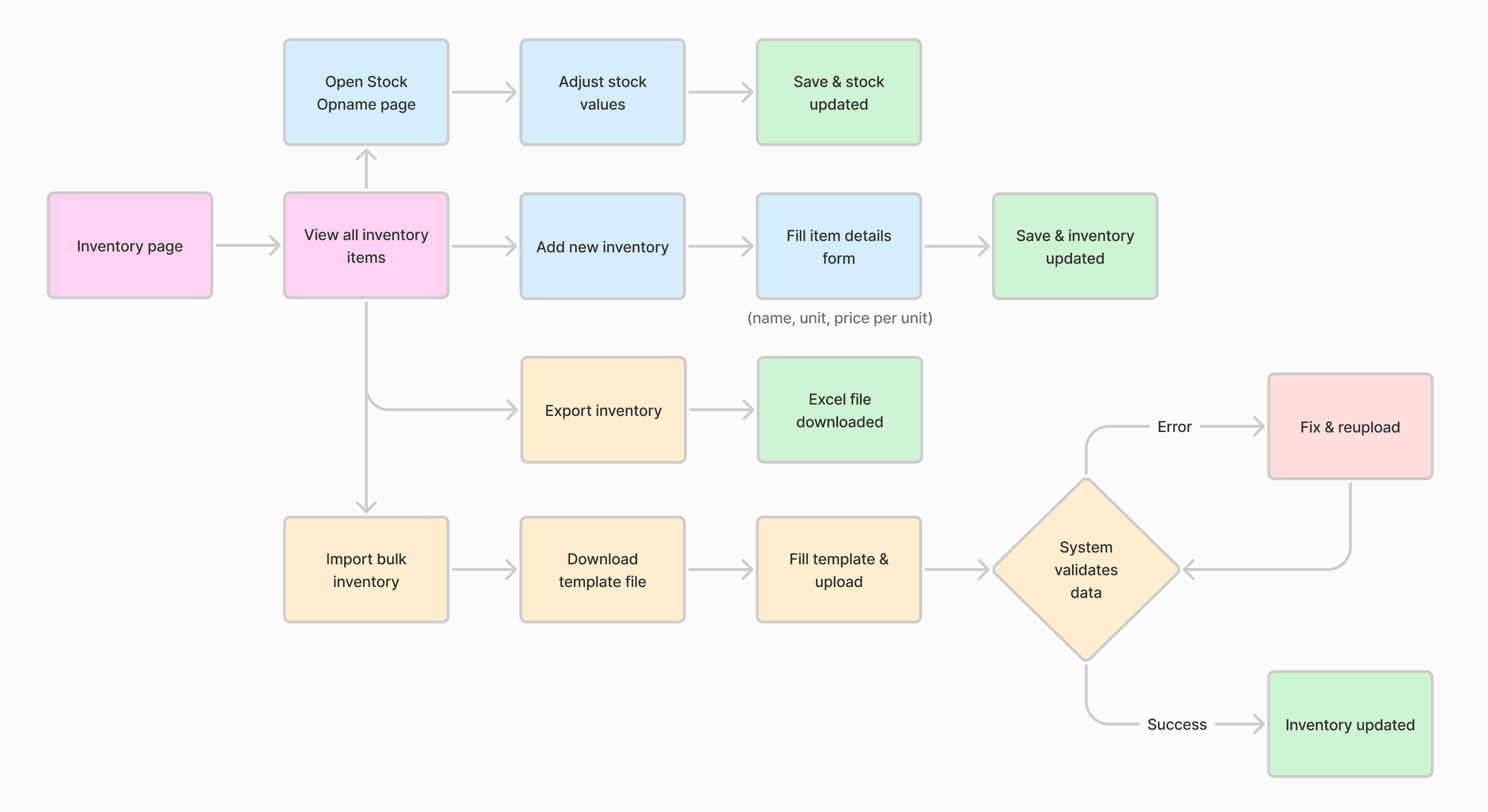
Image: User journey flow
No matter the screen size
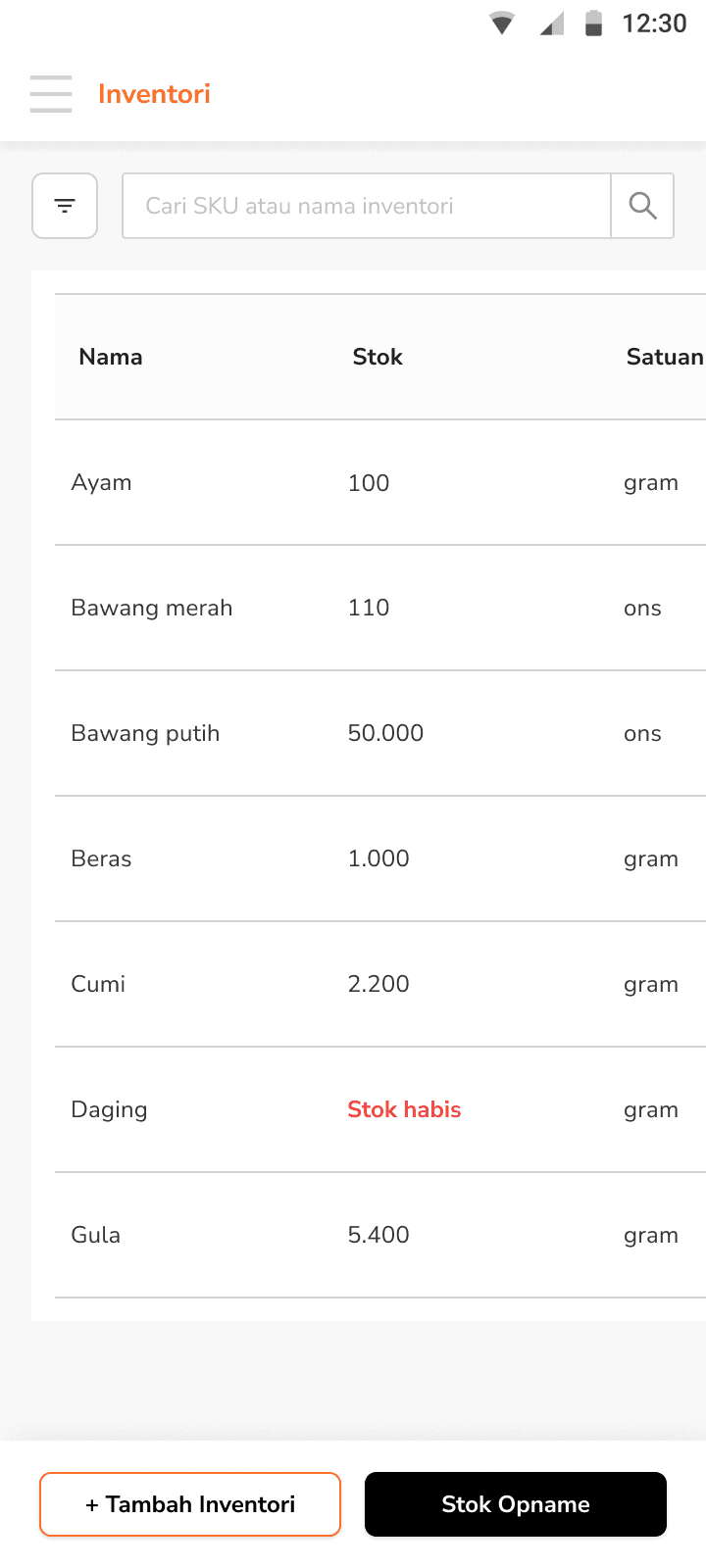
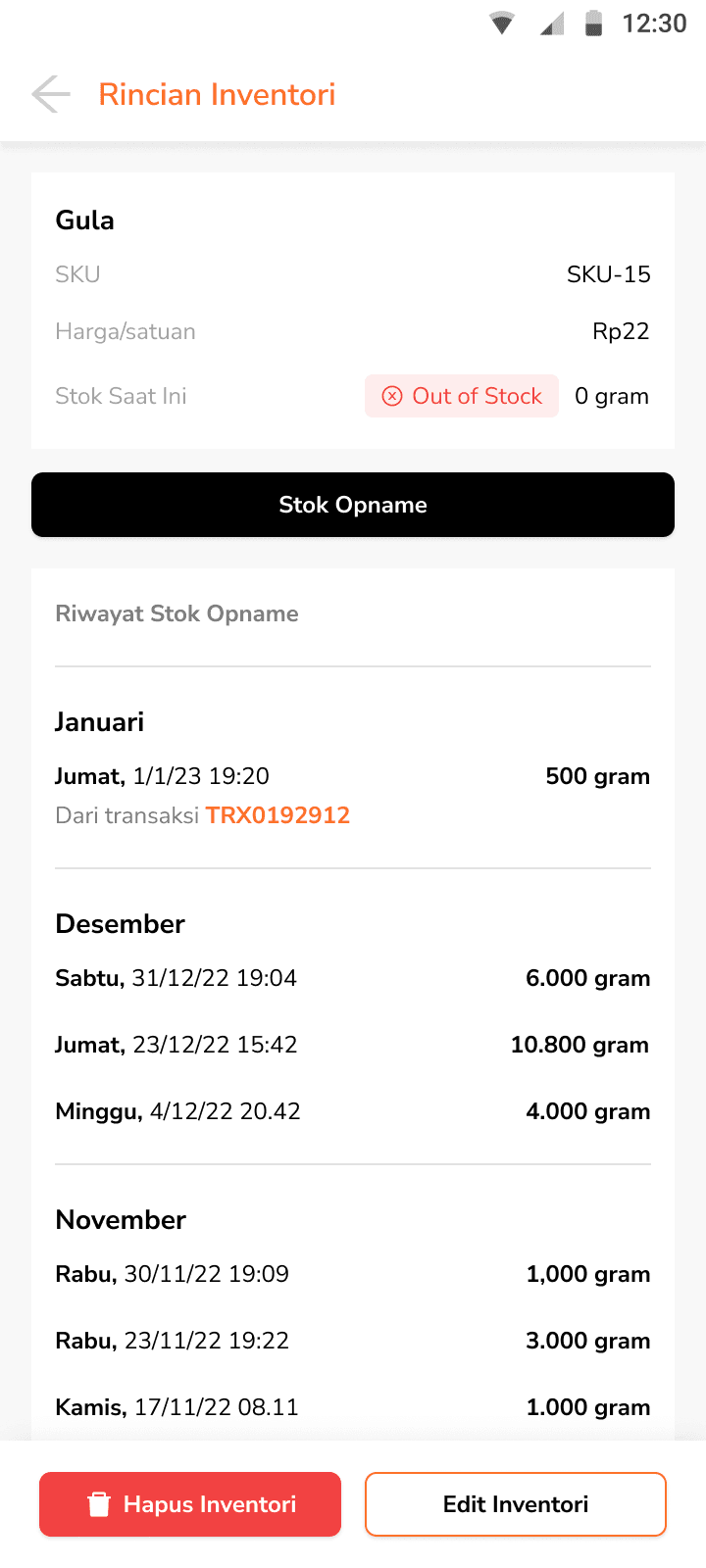
The inventory flow stays consistent whether viewed on mobile or tablet, only the layout adapts for smaller screens. On desktop, the interface opens up to show more data at once, but also adds a few extra steps to navigate through the wider set of options and details.
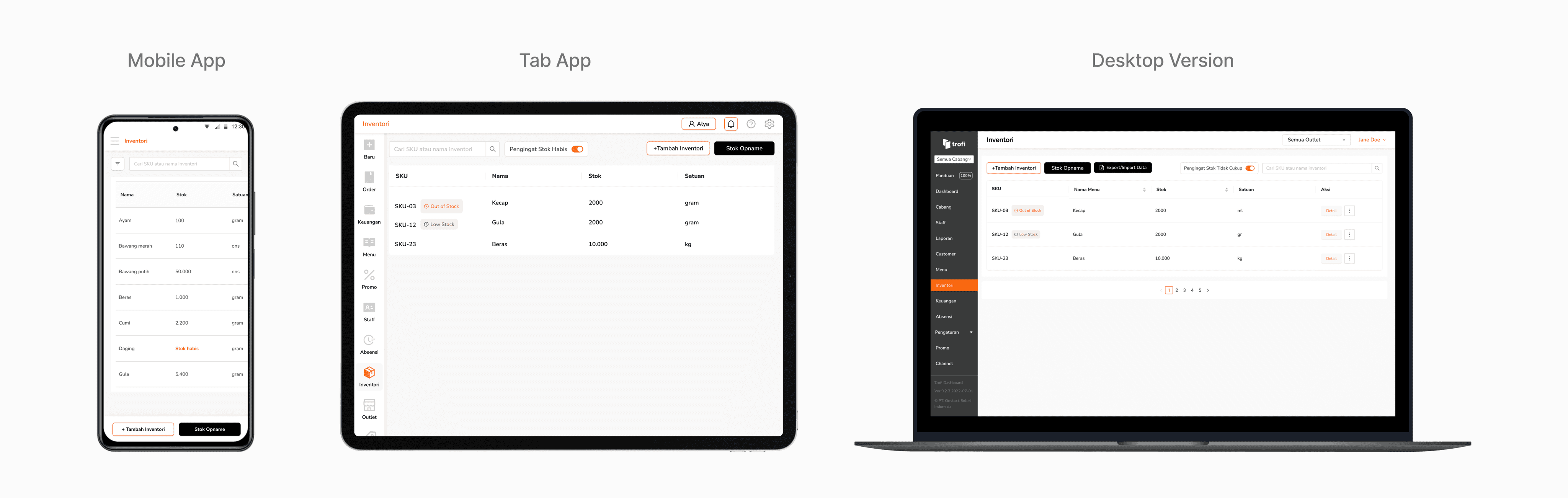
Image: Trofi responsive design
Where ingredients live
Often running in the background, Inventory forms the foundation for accurate order handling. By organizing ingredients and stock data into a clear structure, this module helps connect preparation needs with actual availability.
Add with intention
Each inventory item begins with a few essentials: name, current stock, unit, and price per unit. A unique SKU is automatically generated by the system to keep every item traceable without manual input. To prevent stockouts, a built-in reminder field “Remind when stock reaches…”lets staff set low-stock alerts, helping maintain availability before items run out.
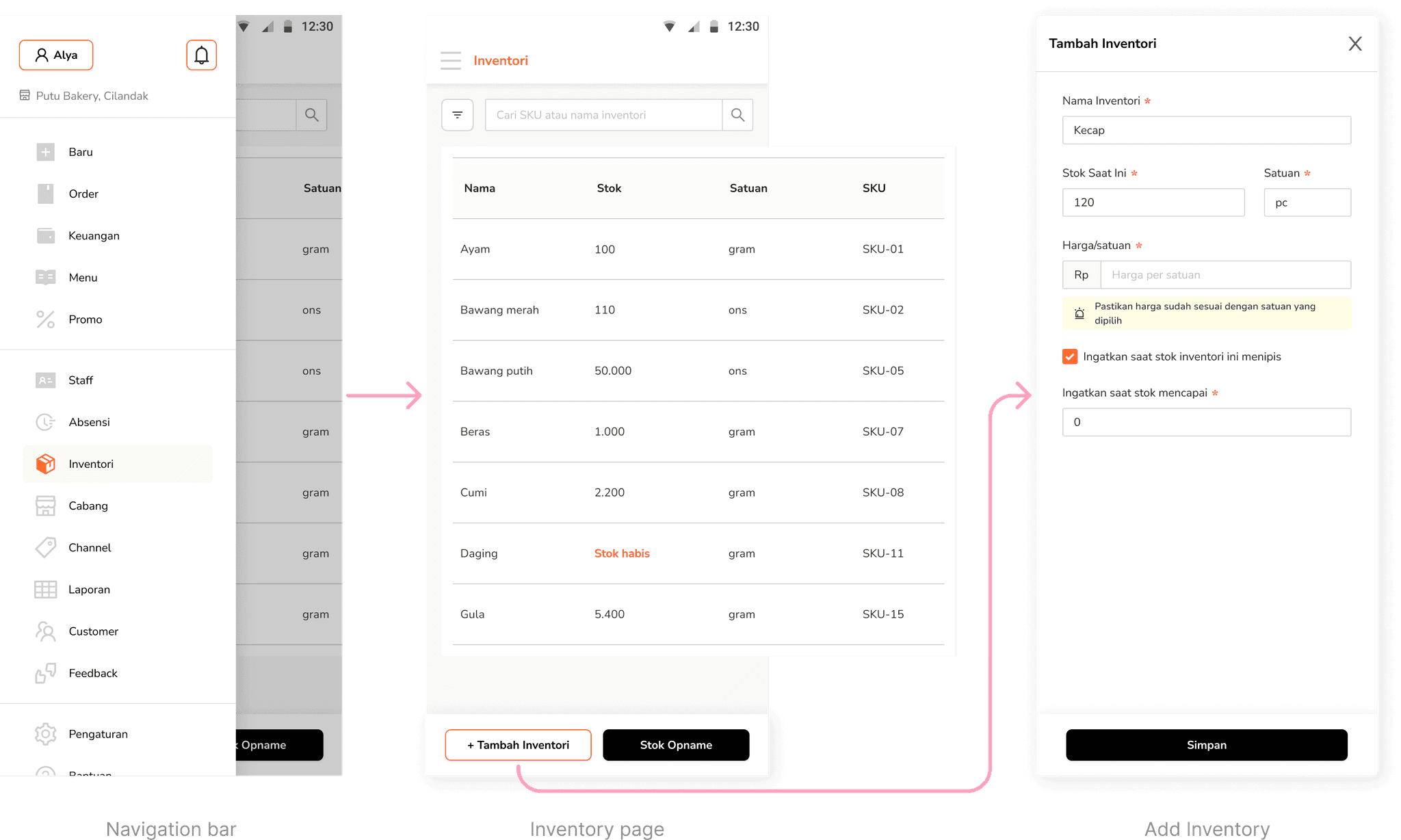
What's inside the item
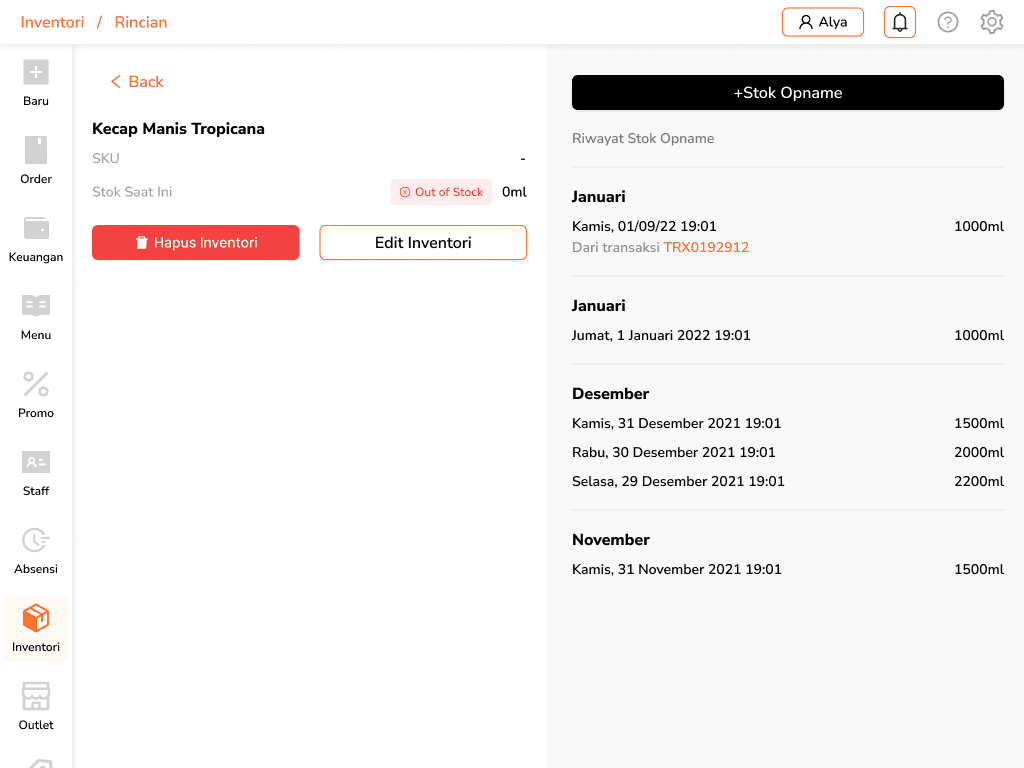
Tapping on an inventory item opens its detail page, showing all essential info at a glance: item name, stock level, unit, price per unit, and system-generated SKU. The page also displays the stock opname history for that item, helping track past adjustments. From here, staff can update item details or delete the inventory if it's no longer needed.
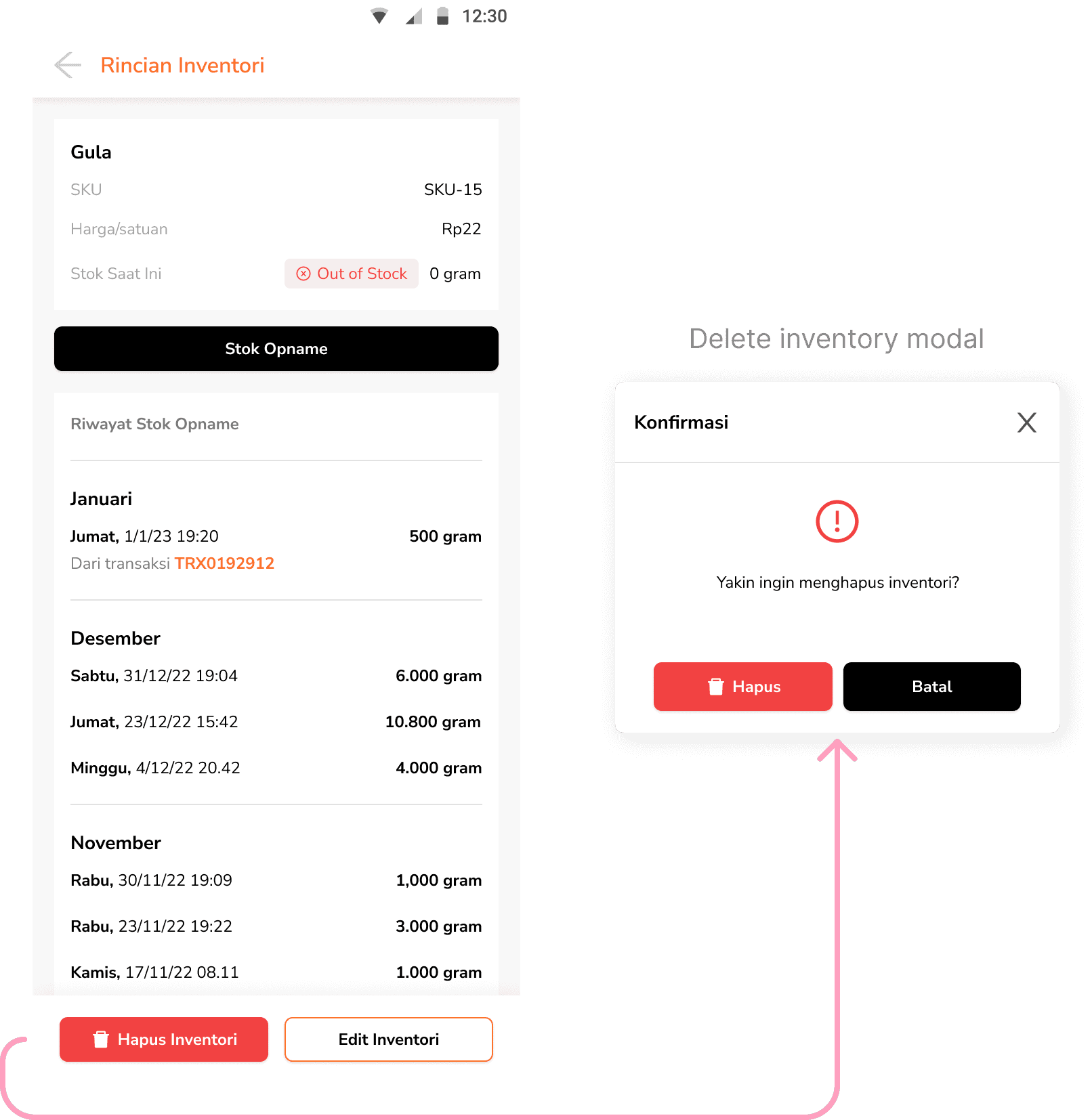
Real stock, real time
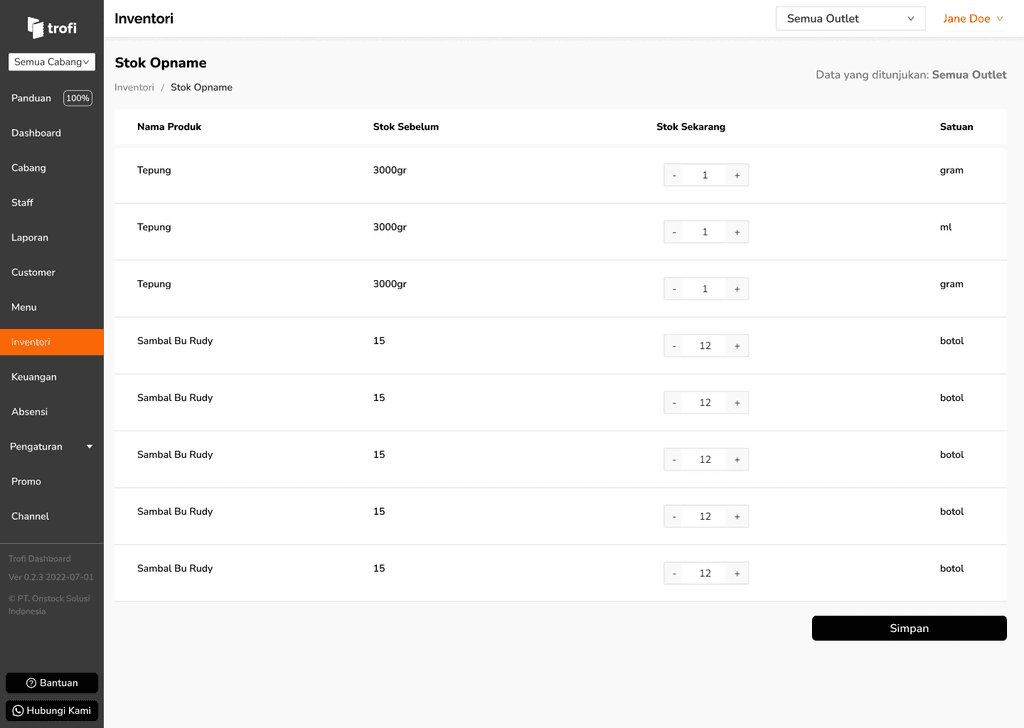
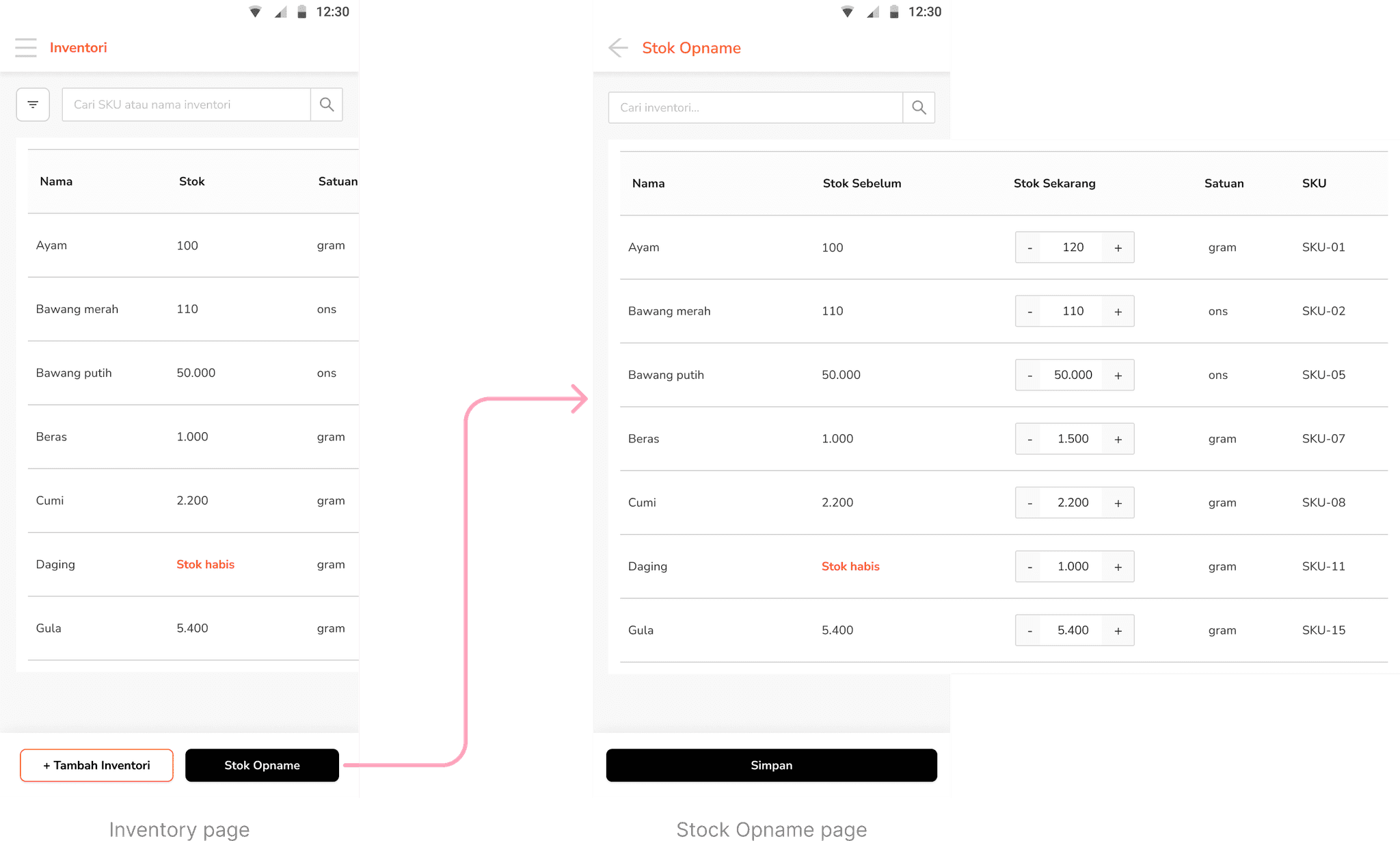
Stock Opname is where digital records meet physical reality. The page lists all inventory items in one view along with their current system-recorded stock and a field for entering the actual counted stock.
Staff can adjust quantities directly, with clear visibility of what changed. Each adjustment is logged, making it easy to track when and how stock levels were corrected. The feature helps catch mismatches, whether from prep errors, spoilage, or missing deliveries, and ensures the numbers reflect what’s really in storage.
When stock runs low
The system keeps track of inventory usage in the background. When a user adds a menu item to the cart, a popup will appear if one or more of the linked ingredients don’t have enough stock. The popup informs staff that the inventory isn’t sufficient to fulfill the order. But the system will auto-apply stock opname in the backend.
The popup also displays:
Which inventory items are running low or out
Which menu item(s) are affected by those ingredients
This ensures that even in rush hours, inventory gaps are tracked and traceable.
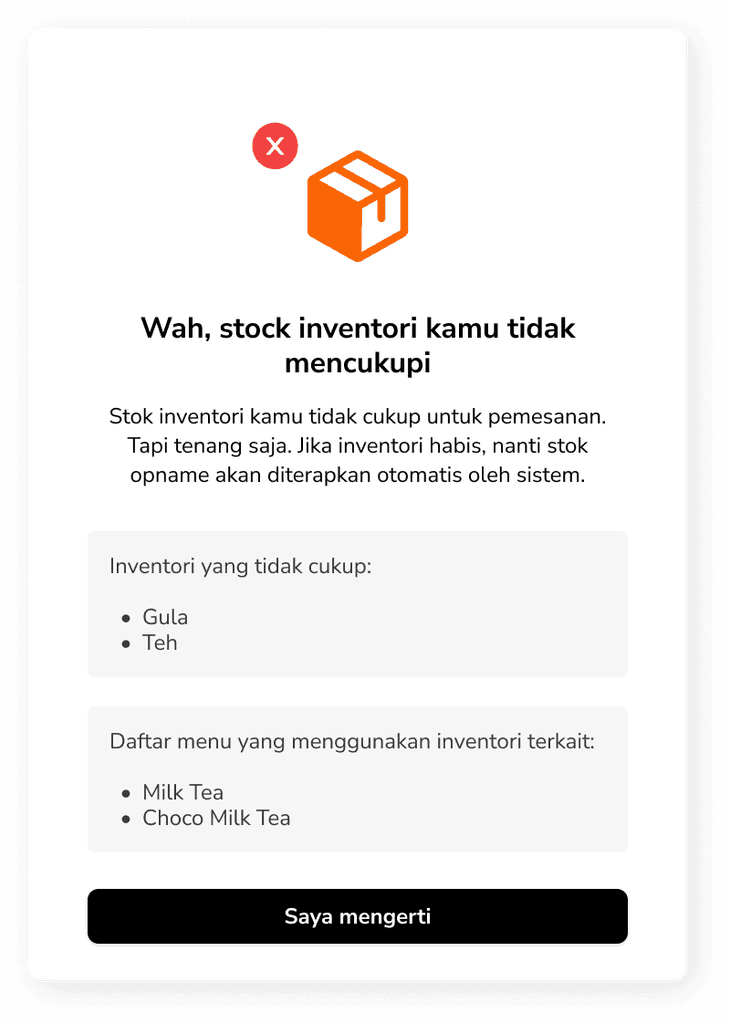
Image: Inventory alert popup for insufficient ingredients
Ingredient = Recipe = Inventory
Recipes serve as the connection point between menu and inventory. When an item is ordered, the ingredients used are instantly deducted from stock. This connection keeps stock levels accurate and responsive to every transaction.
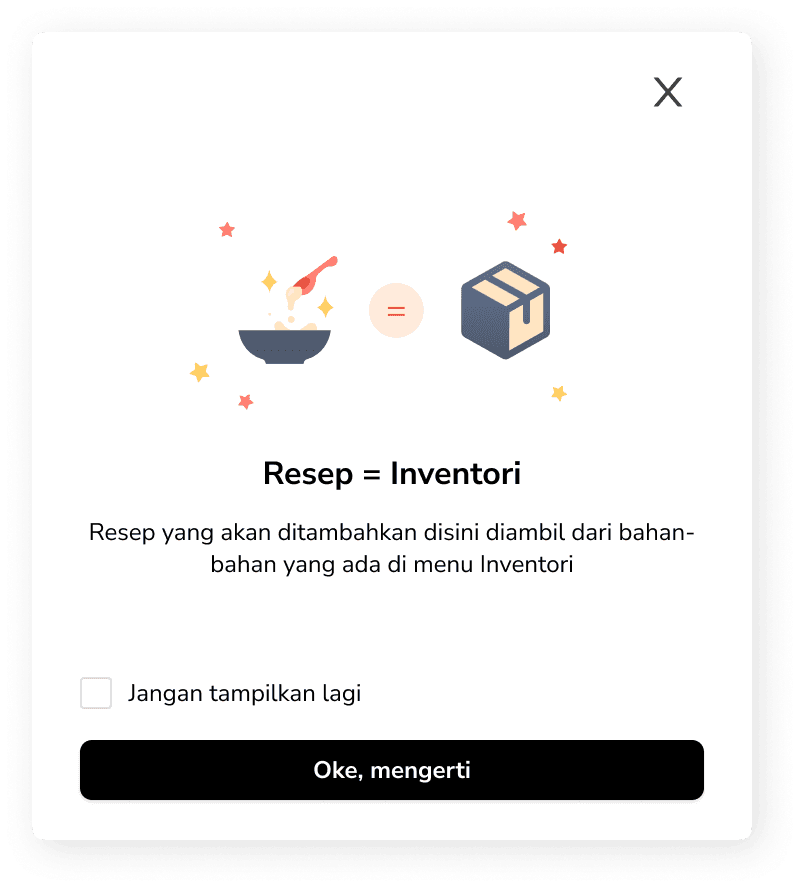
Image: Recipe Inventory explanation popup
Same flow, wider screens
Inventory supports tablet and desktop screens using the overall same flow as mobile. The layout adapts to larger screen sizes, providing more space to view stock lists, access details, and manage multiple items with fewer scrolls or taps. This setup allows staff to switch devices seamlessly, while keeping all interactions familiar and efficient.
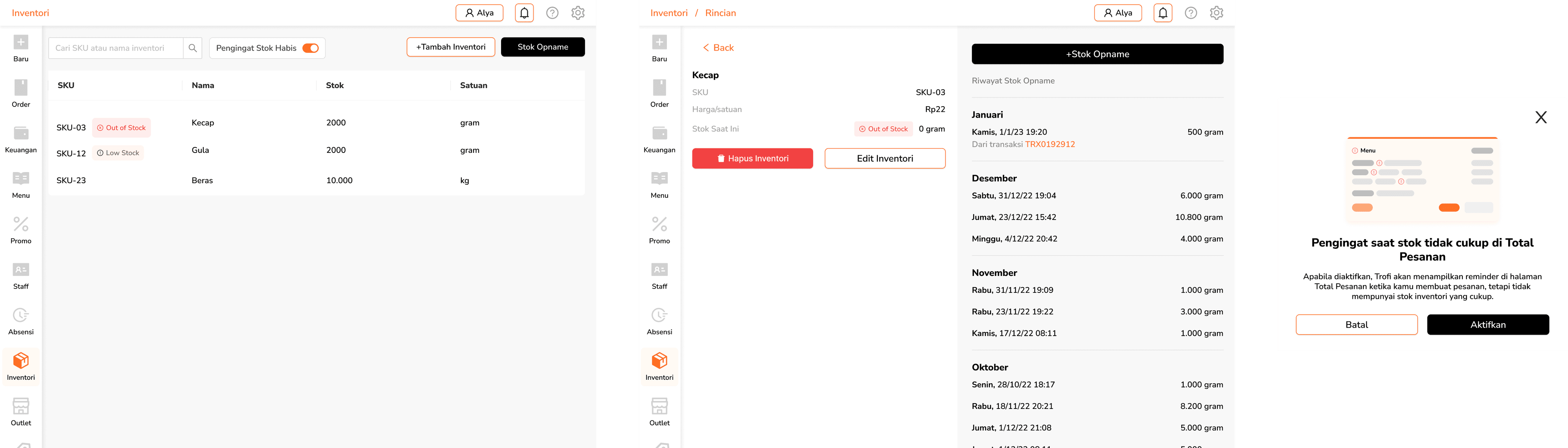
Image: Tablet layout showing inventory list and inventory details
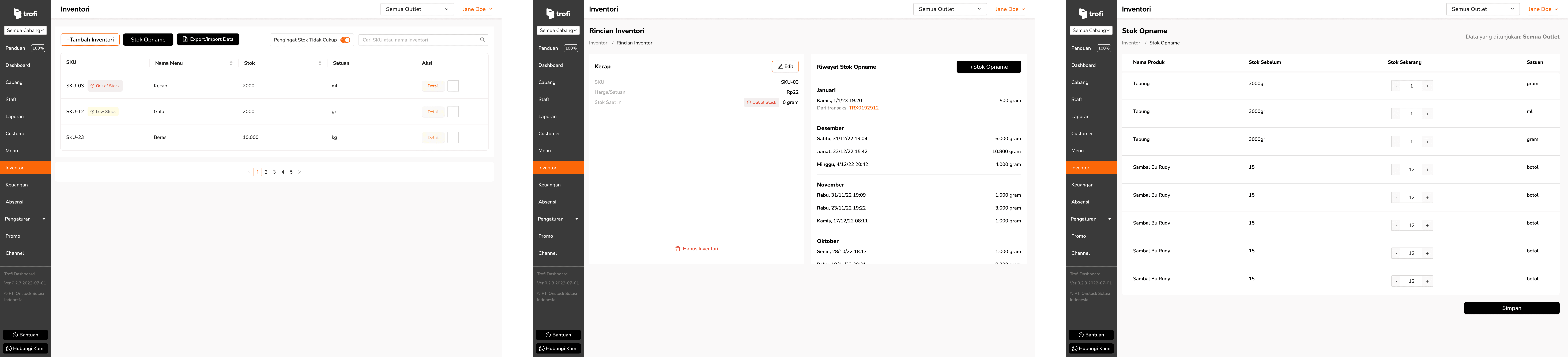
Image: Inventory desktop view with full list visible at a glance
Power features for desktop
Some inventory operations (exporting, importing, or adjusting multiple stock items at once) are only available via desktop. These tools are designed to support bulk updates and make large-scale inventory management faster and more efficient, especially for back-office or administrative use.
Bulk inventory import & export
Inventory updates can be done in bulk via spreadsheet. For importing new data, users can download a ready-to-fill Excel template from the modal, then upload it back once filled. The system will update inventory based on the uploaded file contents.
When using Outlet Mode, each branch may have its own configuration. The import template and exported file are both adjusted to match the selected branch, ensuring compatibility and minimizing errors. For exports, users can download the current inventory data as an .xls file.
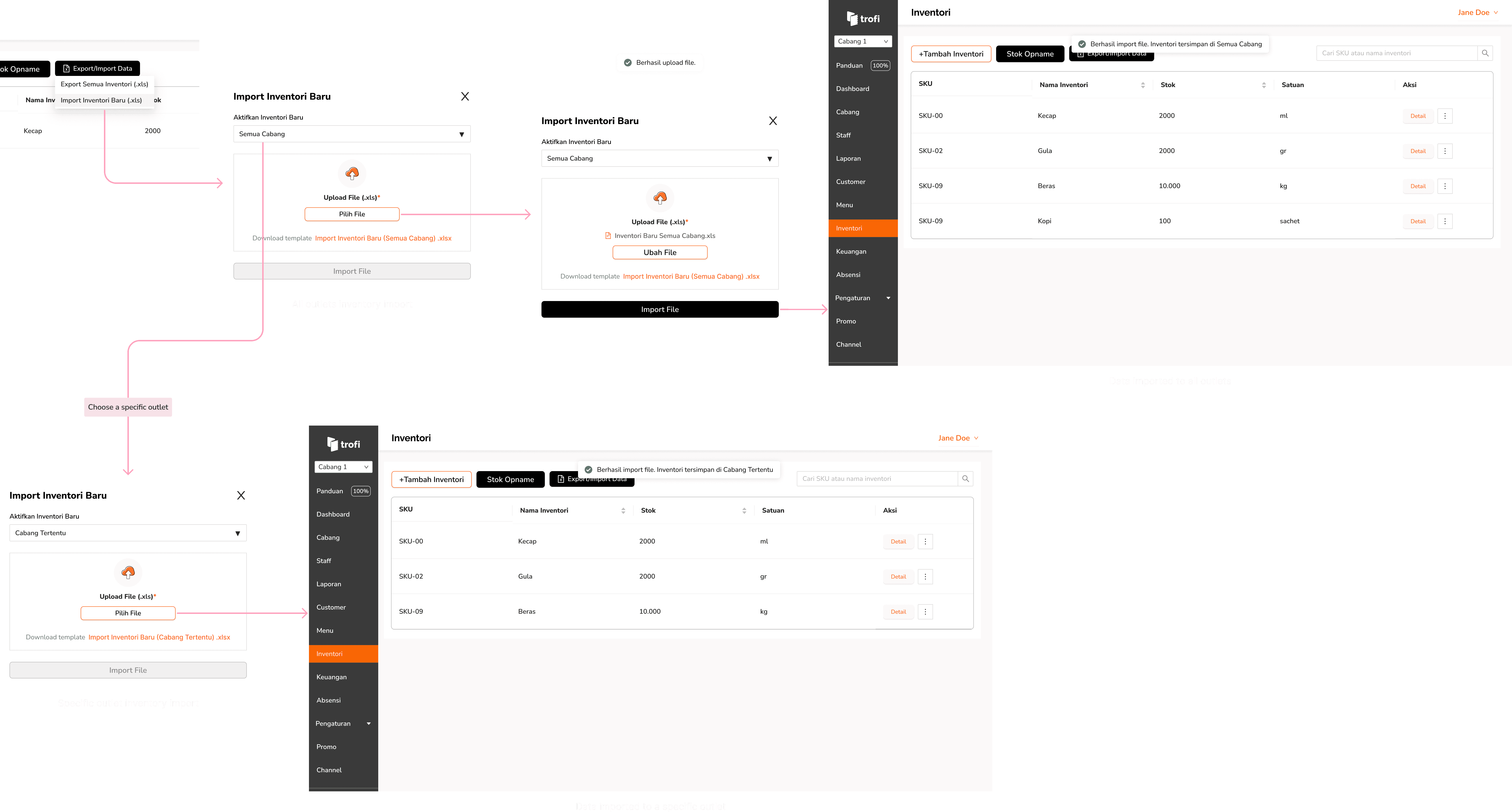
Image: Trofi desktop inventory update flow
Bulk stock opname
This feature follows the same process as bulk inventory import, but is specifically for stock opname adjustments. Accessed from the Stock Opname page, users can download the provided template, update the current stock data, and upload it back to the system. The updated stock levels will be applied according to the uploaded file.
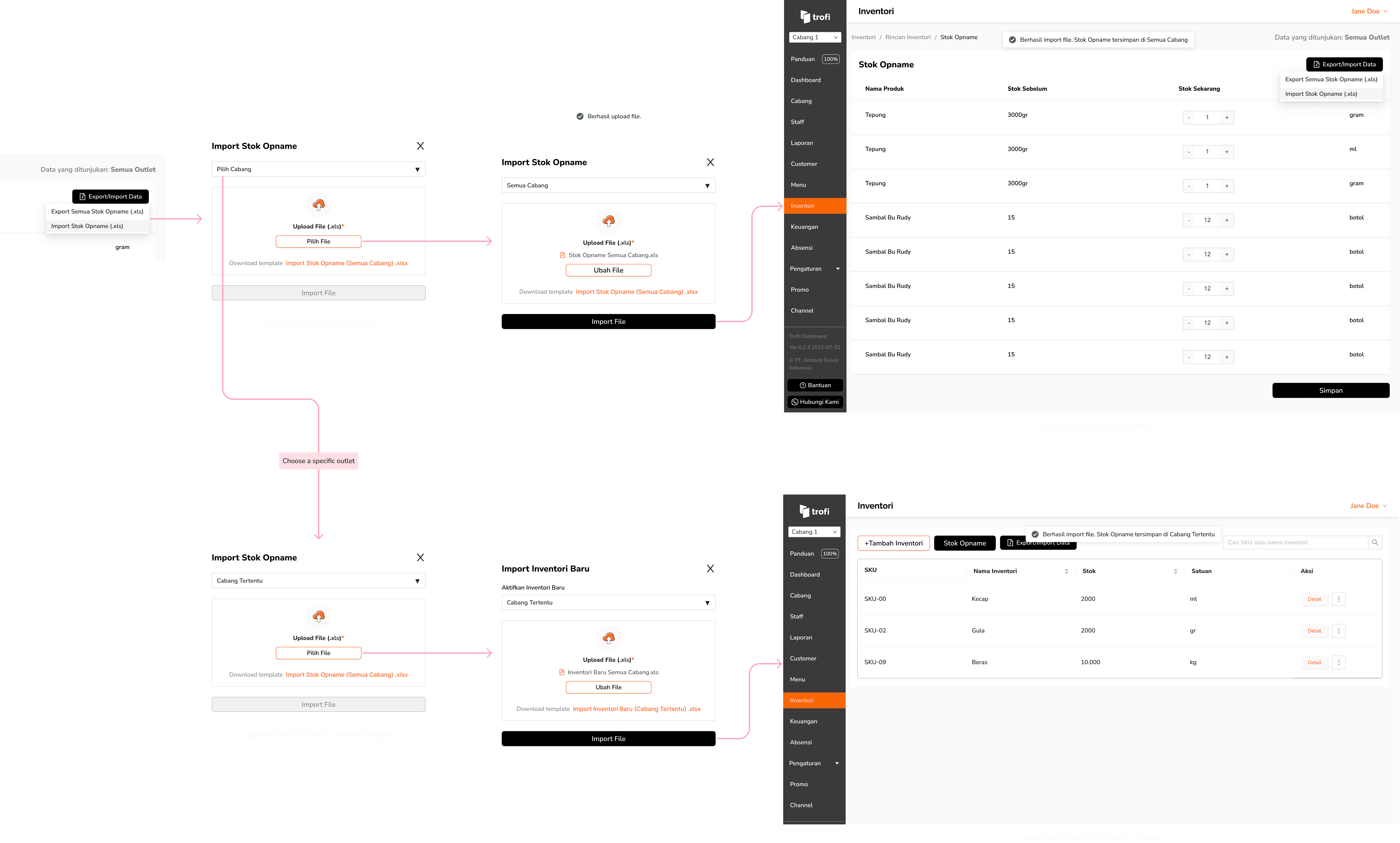
Image: Trofi desktop stock opname update flow
Unhappy flow
The same error handling applies to both bulk inventory import and bulk stock opname import. There are two main error cases:
Incorrect Template – The system will notify the user that the uploaded file does not match the required template, and prompt re-upload from the same modal.
Invalid Data – If the file structure is correct but contains invalid data, the modal will display which row and column contain the errors.
Although the example shown here is for bulk inventory import, the same flow applies to bulk stock opname, with the only difference being the feature title.
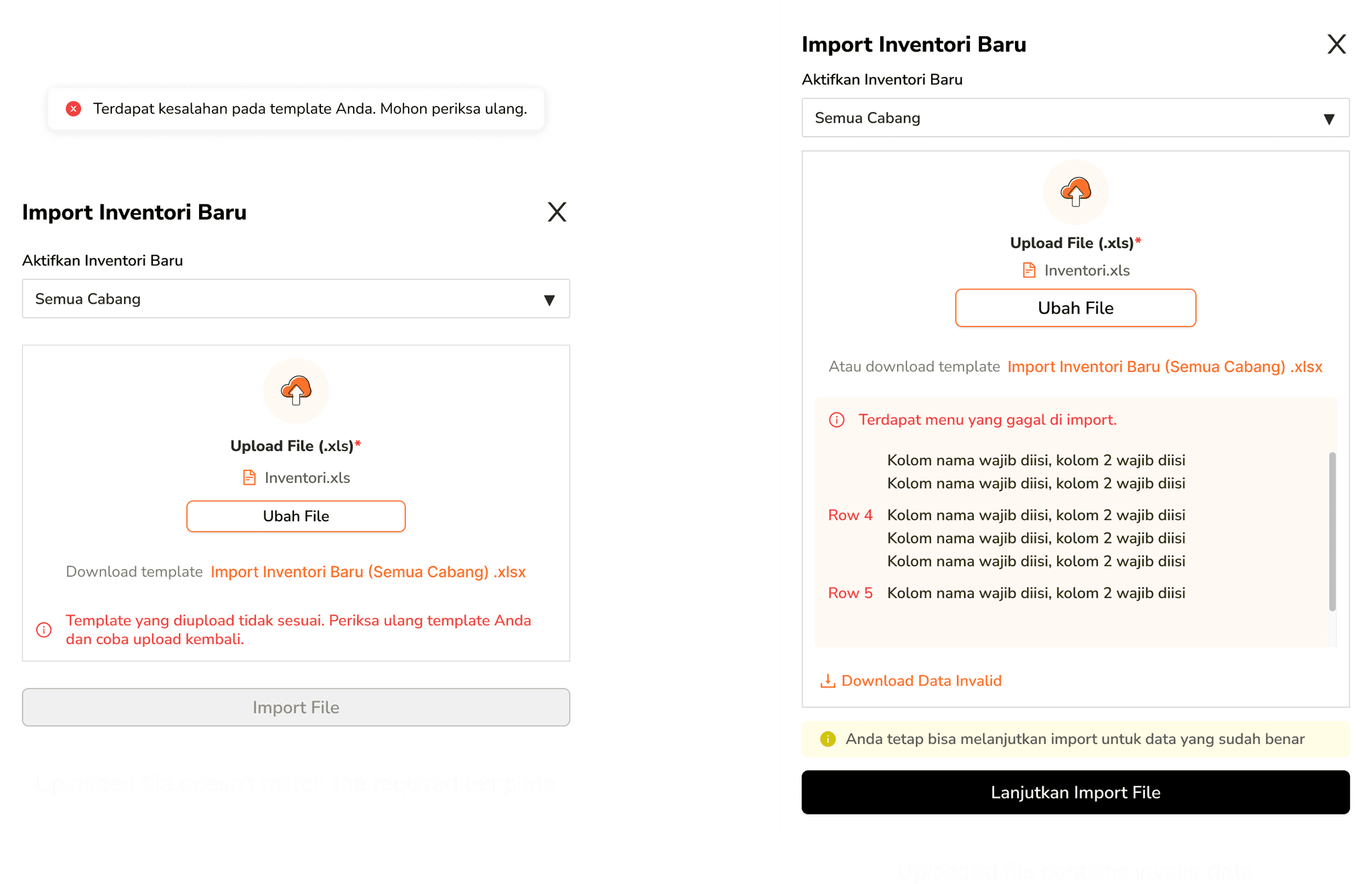
Image: Inventory flow possible error cases
Shaping Inventory for every Outlet
Over time, the inventory flow went through several small but meaningful adjustments. Early feedback showed that some steps felt repetitive when switching between outlets, so we refined the flow to make it easier to handle each outlet’s data.
These iterations refined how inventory is viewed and managed across outlets, focusing on clarity, outlet-specific workflows, and smoother in-page transitions.
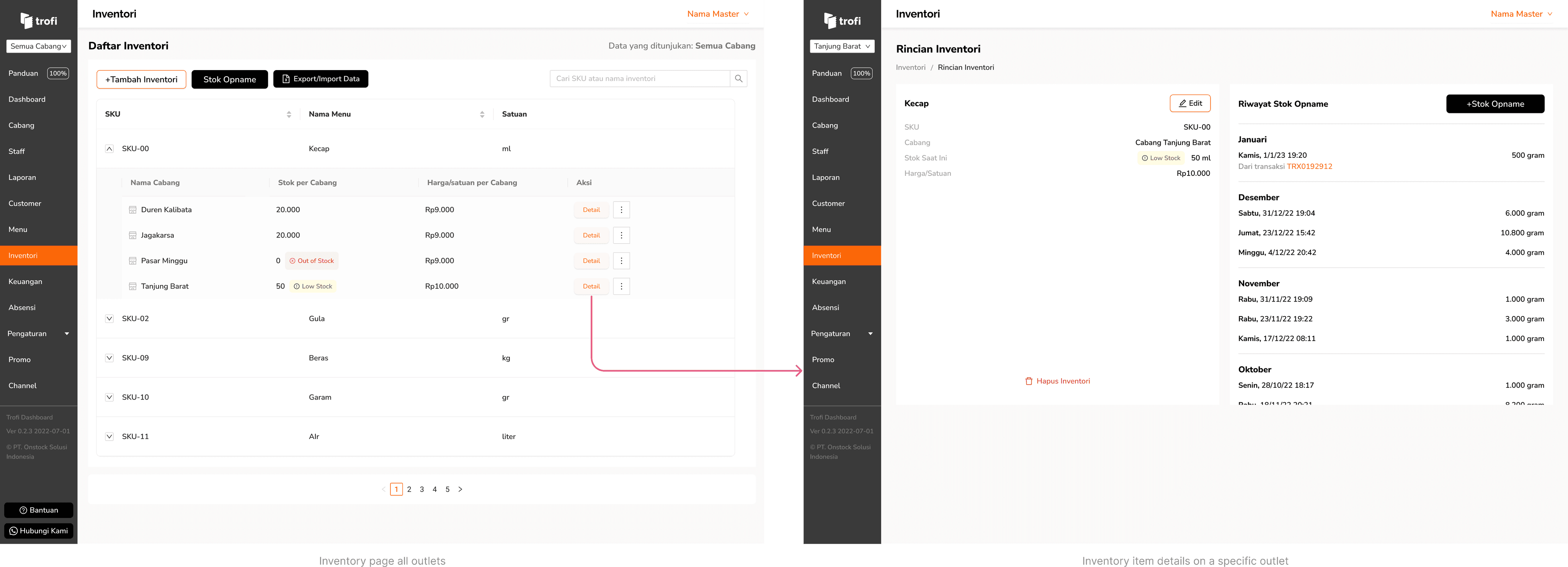
Inventory overview page
The main inventory page acts as the hub where everything connects. After iterations, each item appears in a table that expands to reveal outlet-level detail like the outlet name, stock quantity, price per unit, and a button to open that outlet's inventory detail page.
Stock opname flow
The flow begins by asking users to select an outlet before starting stock opname, ensuring the process reflects each outlet’s unique stock data.
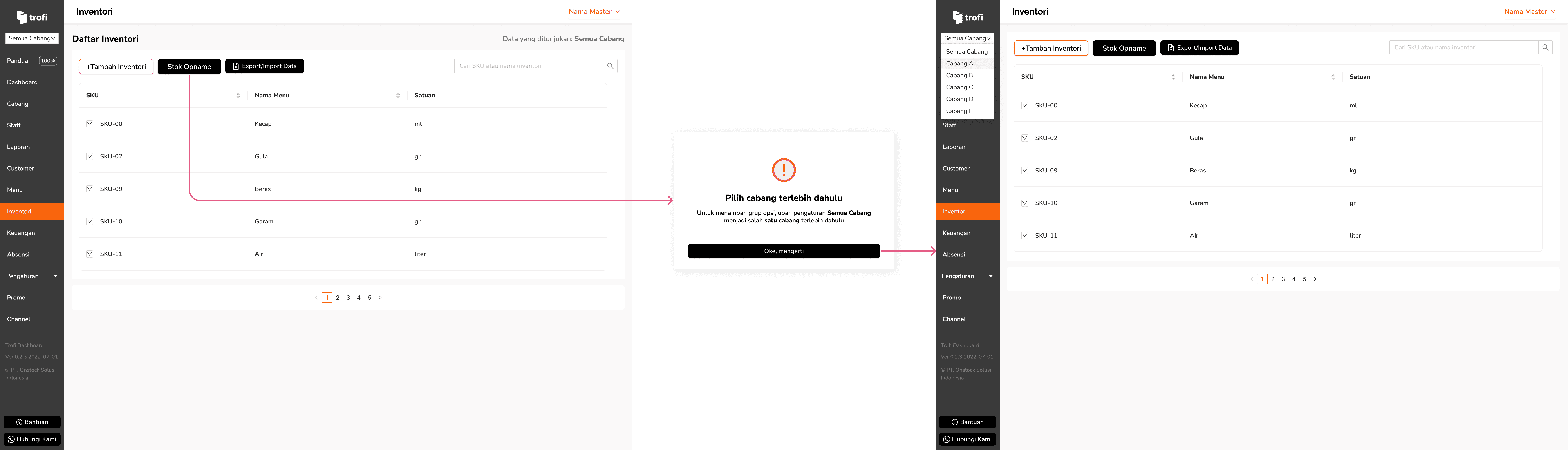
Image: Choose outlet prompt in stock opname flow
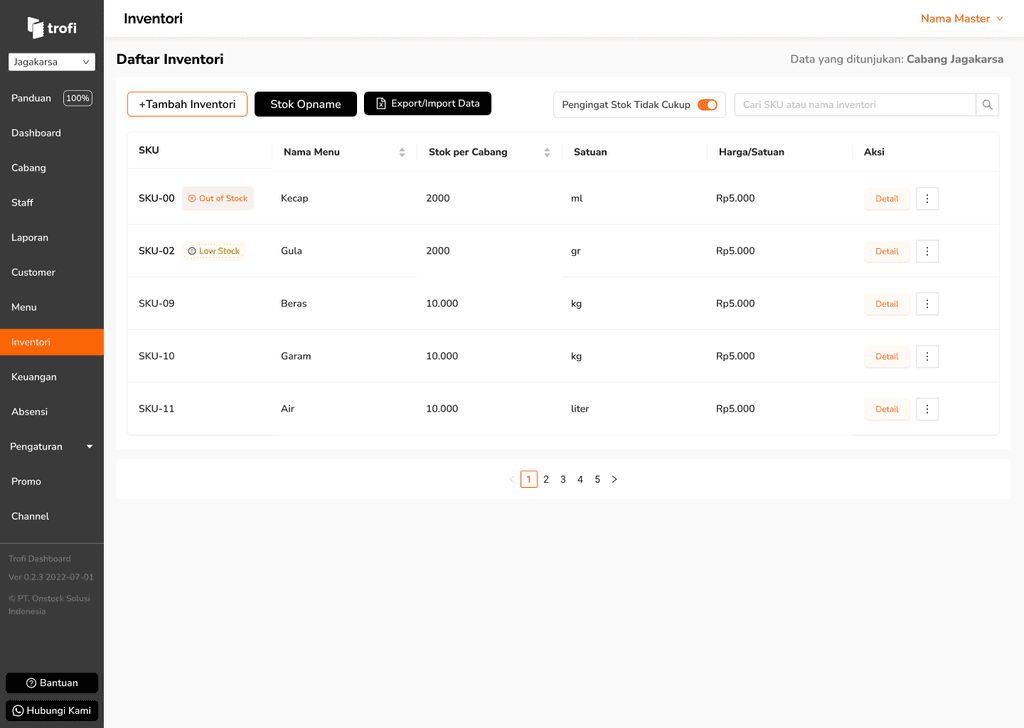
Viewing a specific outlet
Choosing an outlet shows a dedicated inventory view, following the same familiar structure to the previous design, but filtered to display only that outlet’s data.
Micro-interations
Small touches were also added along the way. Changing the outlet from an inventory detail page takes users back to the main list, pre-filtered for the chosen outlet. This prevents confusion about which outlet’s data is being viewed and keeps the context intact without forcing a manual reset. Even in quick navigations, the interface subtly confirms the outlet change through updated headers and table content, so users instantly know they’re in the right place without extra clicks or page reloads.
Lessons from the stockroom
Working on the inventory features revealed more than just ways to track stock. These takeaways help shape not only the product, but also how we approach future iterations.
Bulk actions save more than time
Giving users the ability to manage large datasets in one go reduces operational friction, minimizes repetitive work, and builds trust in the system’s ability to handle scale.
Responsive doesn’t mean identical
Adapting layouts for different devices ensures the core flow stays familiar while accommodating screen-specific needs and interaction patterns.
Small interactions have big impact
Subtle micro-interactions, like context-aware redirection, help users stay oriented and reduce cognitive load during navigation.
A Lasting Note
Built with purpose, remembered with warmth
Although the work eventually came to an end, it ran successfully for nearly three years and found a place in the daily routines of real users. Many of them shared kind words when it stopped—and that, more than anything, reminded me why I love building things that help ♥︎